R/W
R/W tab panel allows you to directly read and write to the transceiver register.
I2C Access Speed Configuration
The I2C RX/TX transceiver access speed on the Z400 Thor 112G PAM4 can now be configured, enabling an increase in the I2C access speed to a maximum of 800KHz. This enhancement facilitates quicker diagnostics and firmware updates among other tasks involving transceivers.
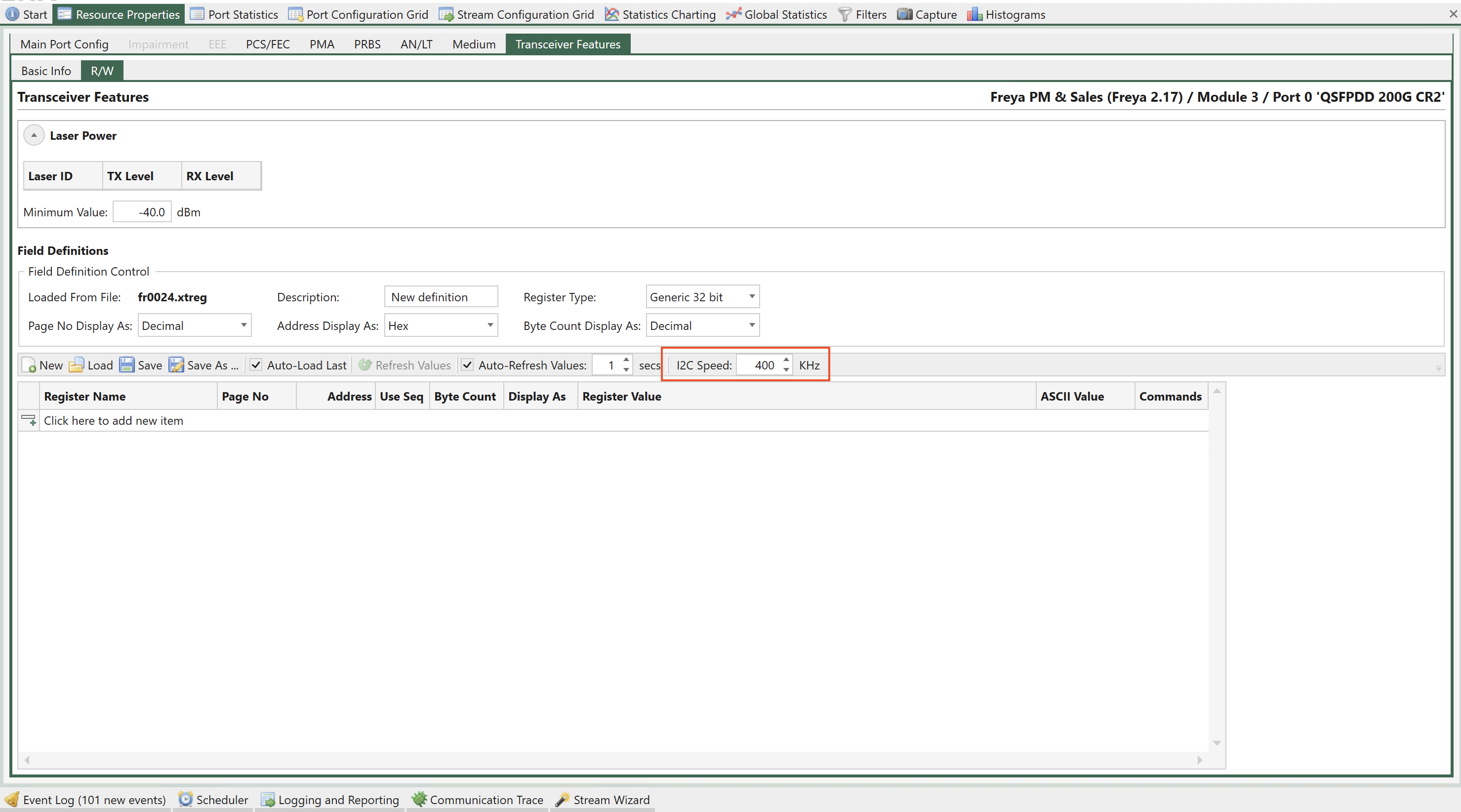
Fig. 5.100 Port Properties - I2C access speed configuration
Laser Power
In addition to register access the The Transceiver Features panel can show laser power information if that is supported by the module and the port transceiver.
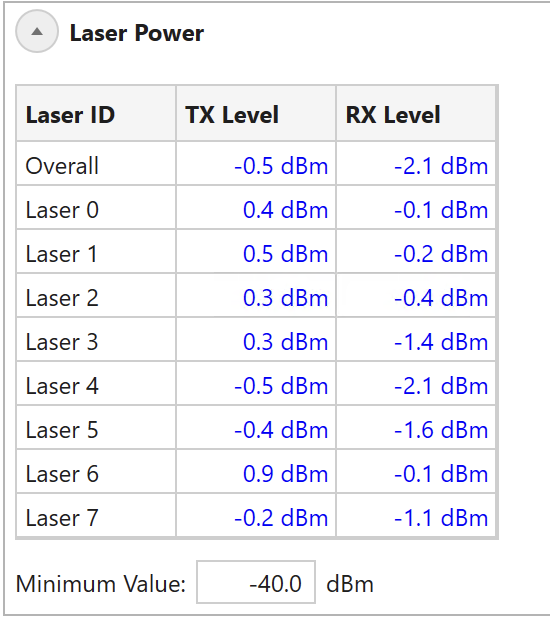
Fig. 5.101 Port Properties - Laser power
TX and RX power level will be shown for each laser in the transceiver together with an overall reading, which shows the lowest values for the displayed power levels. You can set a Minimum value: If any you the level readings are below the Minimum value they will be highlighted with a red color.
Register Access
The Transceiver Features panel provides access to the register interface supported by the port transceiver. It is possible to both read and write register values.
All supported registers for a transceiver are shown in Fig. 5.102.
All registers for a given transceiver type is typically organized in sets called pages. Each register within a given page is then identified by an address.
It is possible to read consecutive addresses from a page using sequential access by ticking Use Seq and configure byte count.
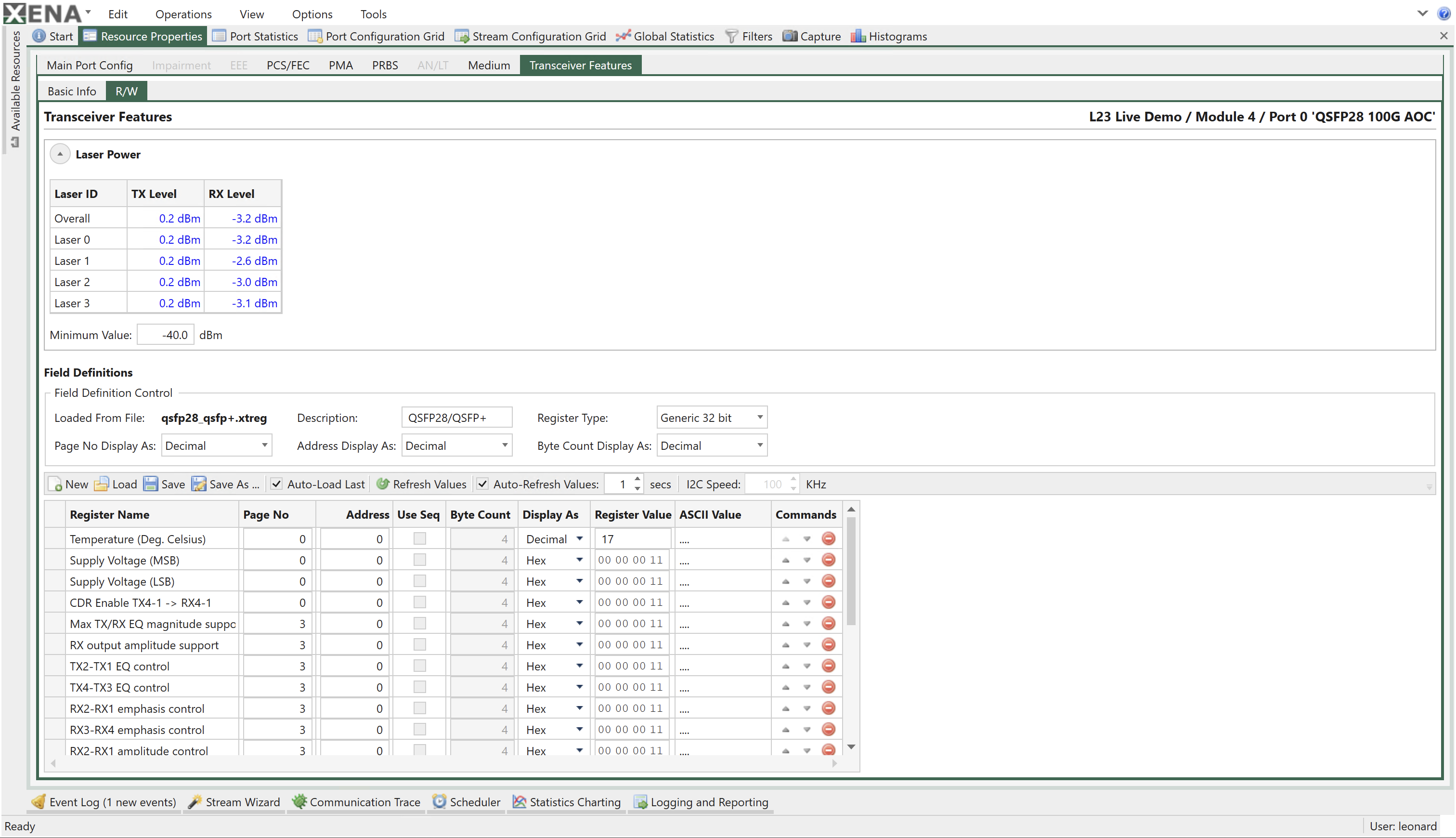
Fig. 5.102 Port Properties - Register access
Reading Register Values
The register values can be read manually by pressing the Refresh Values in the panel toolbar. The panel can also refresh the values periodically if the Auto-Refresh option is enabled.
The field values will primarily be displayed using the selected field display type (hex, decimal or binary) but it will also be displayed as ASCII characters for convenience.
Writing Register Values
The register values may also be changed by the user by changing the value in the Register Value column. The new value is applied when the Enter key is pressed.
It is not possible to change the ASCII character value directly.
Register Definitions
Each set of supported register fields for a given transceiver type is defined in a separate file with extension .xtreg. The data definition is formatted using JSON notation.
You can load a register definition file by pressing the Load button ion the toolbar. If the Auto-Load Last option is selected then the last loaded definition will automatically be loaded the next time XenaManager is started.
Built-in Register Definitions
The XenaManager is shipped with a set of commonly used register definitions, such as the MII register set mentioned above. These files will be kept in the folder Documents\Xena\XenaManager\TcvrDefs.
Creating or Modifying Definitions
It is also possible to modify the built-in register definitions or create your own from scratch.
To create a new definition you should press the New button in the toolbar. You can also change an existing definition by loading it and saving it under a new name.
Changing Display Options
The top subpanel called Field Definition Control defines the overall handling of all register fields in the definition. You can change the display type (hex or decimal) of both address and page number fields. You can also change the bit width (16 or 32 bit) of the register addresses.
Adding or Removing Fields
You can add a new register field by pressing the area at the bottom of the field definition table labeled Click here to add a new item. The new item will be added to the bottom of the table.
You can reorder the field by using the up- and down-arrows in the Commands column.
To remove a field press the Delete icon in the Commands column.